

THE HOW TO FULLY REMOVE COOKIES AND DANGEROUS INTERNET FILES FROM APPLE MAC AND WINDOWS PC COMPUTERS (PLUS APPLE IPHONES AND ANDROID PHONES)
First of all, if you suspect that you have been hacked whatsoever, you must first ensure that your internet is not compromised by replacing your modem (and router if applicable), and re-securing your devices before connecting any device to the new modem. Replace the software / operating system (OS) on all your devices before connecting to any internet. Always avoid public wifi and try not to even use your work’s wifi for personal devices. You are most secure by only accessing the internet by computer through a wired ethernet connected directly to your modem (or wifi-disabled router). Cell phones are least secure for accessing the internet, and considering how much personal data is accessed and divulged via email and especially social media, WE are ALL safer to only use computers when accessing the internet for reasons included below.
How To Remove Cookies From Apple iPhones and Android Phones:
- Turn off wifi and bluetooth, as well as data (if your phone allows you to still access settings in your browser without any connection – turn on airplane mode as well if so).
- Open Safari or Google (and any other internet browser(s) downloaded to your phone). Clear the stored internet files/cache manually from the browser(s).
- Shut down your phone to finalize the clearing of your stored internet files. Startup your phone after 10 or more seconds and continue use as normal.
Note, cell phones do not allow access to a “Command Terminal”, and therefore cell phones store hidden files (that can include hacker’s files) that you cannot remove as you can on an Apple Mac or Windows PC computer (as shown below). For this reason, it is recommended that you limit your online activity to a computer. Get rid of your data plan (save up to ~90% of your monthly phone bill and reduce your exposure to cancer-causing radiation emitted by cell phones).
How To Fully Remove Cookies From Apple Mac Computers:
- Disconnect from the internet and turn off wifi, bluetooth, and airplay (you are best off to only use direct-port ethernet, as well as speaker and microphone options, so these should be turned off already).
- Open Safari (and any other internet browser(s) downloaded to your computer). Clear the website data and/or stored internet files/cache manually from the browser.
- There are cookies and other internet files that are stored in folders hidden on the backend of your Apple Mac computer. Remove them by doing the following:
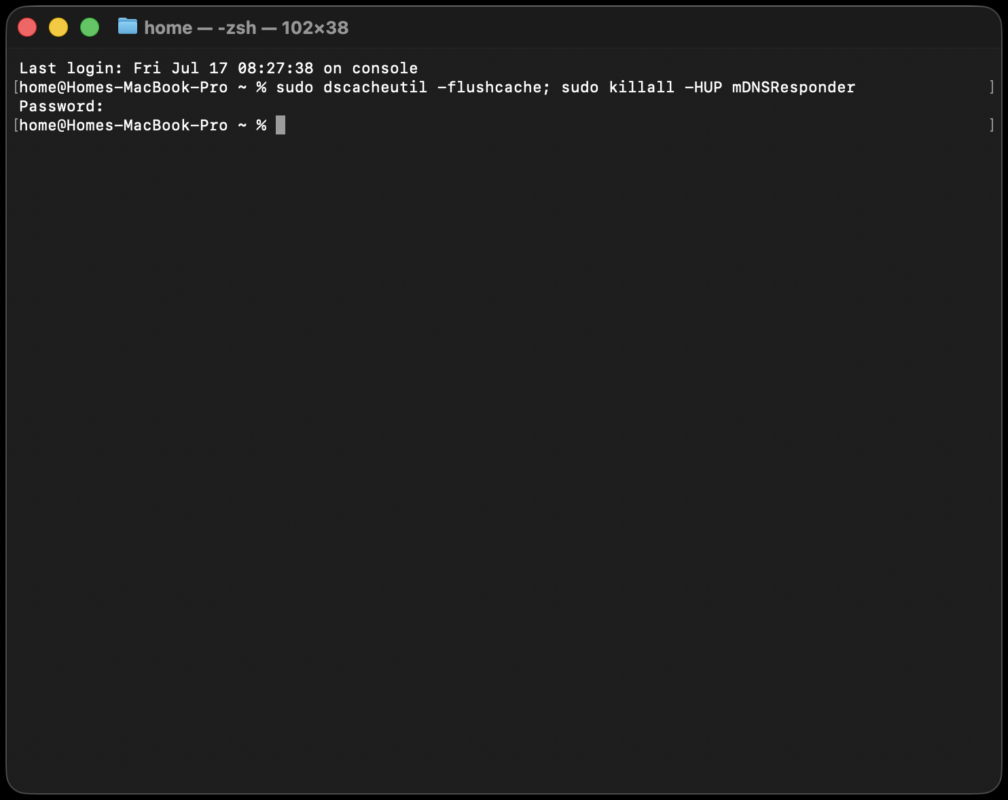
- Open your “terminal” app. Type “sudo dscacheutil -flushcache; sudo killall -HUP mDNSResponder” then press enter / return
- Enter your password when prompted. If all is entered correctly you will not get a notification, but the “Terminal” will drop down to a new line to enter a new command code. Close the “Terminal” app
- Shut down your computer to finalize the clearing of your stored DNS internet files. Startup your Mac after 10 or more seconds and continue use as normal.
Remember that you must do this after every time you connect to the internet in order to maintain the security of your online activity and devices.
How To Fully Remove Cookies From Windows PC Computers:
- Disconnect from the internet and turn off wifi and bluetooth (you are best off to only use direct-port ethernet, as well as speaker and microphone options).
- Open Internet Explorer (and any other internet browser(s) downloaded to your computer). Clear the stored internet files/cache manually from the browser.
- There are cookies and other internet files that are stored in folders hidden on the backend of your Windows PC computer. Remove them by doing the following:
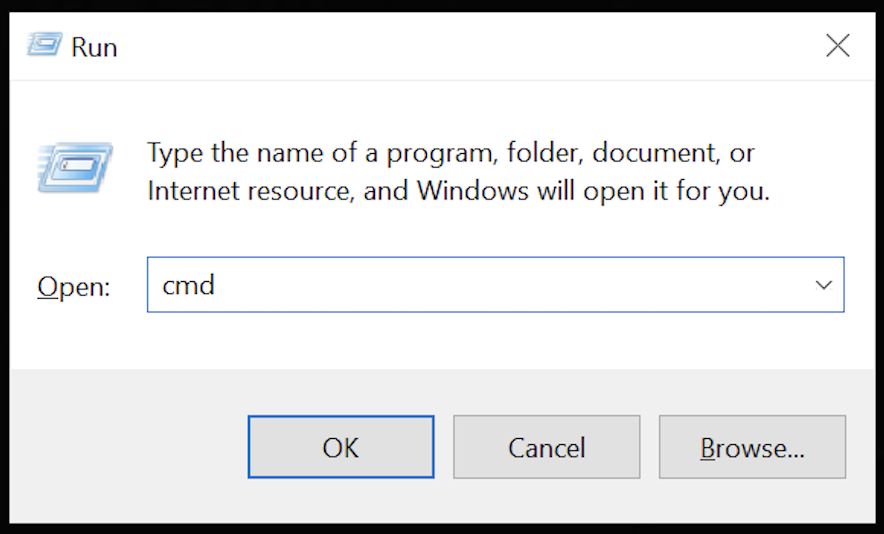
- Press the “Windows icon” button on your keyboard + “r” at the same time. This opens your file command search box.
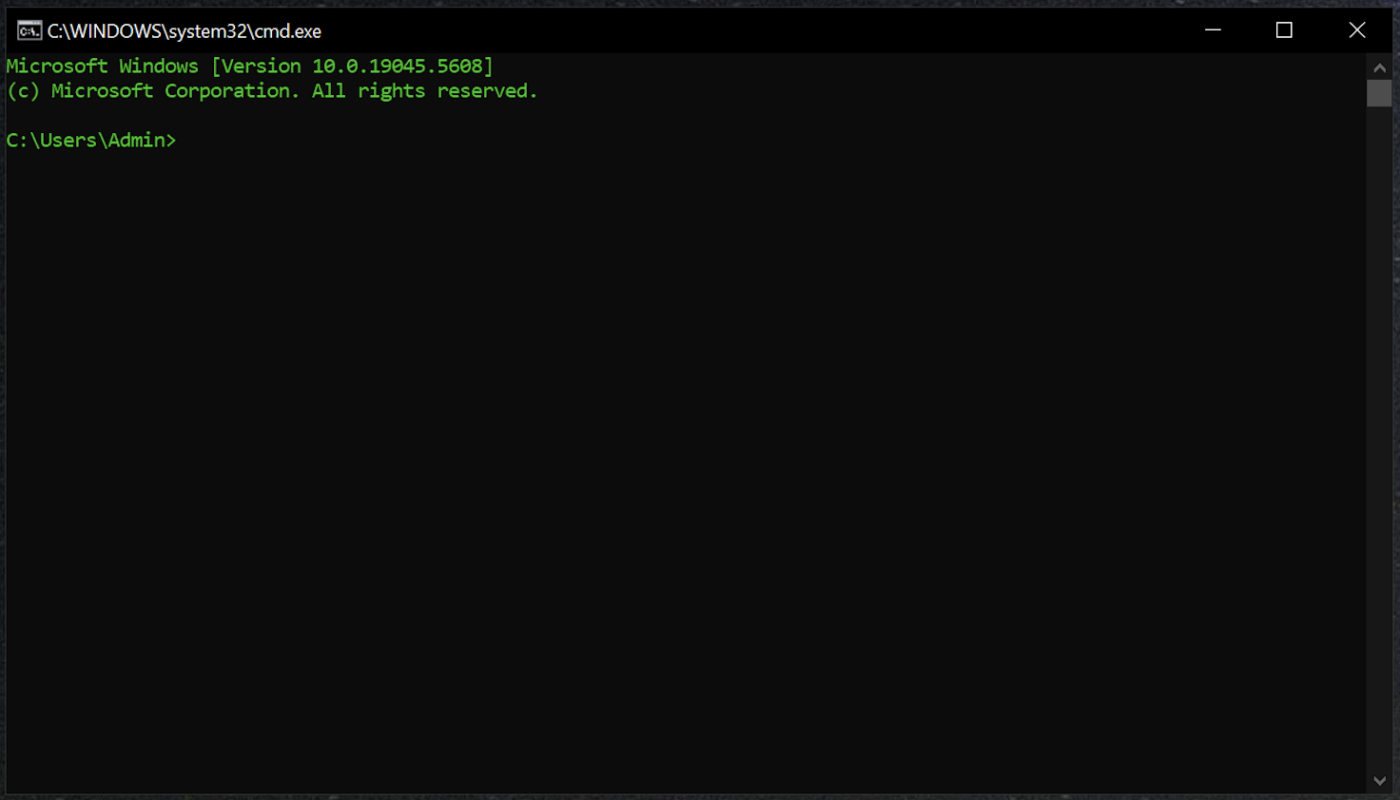
- Type “cmd” and press enter. This will open your command terminal.
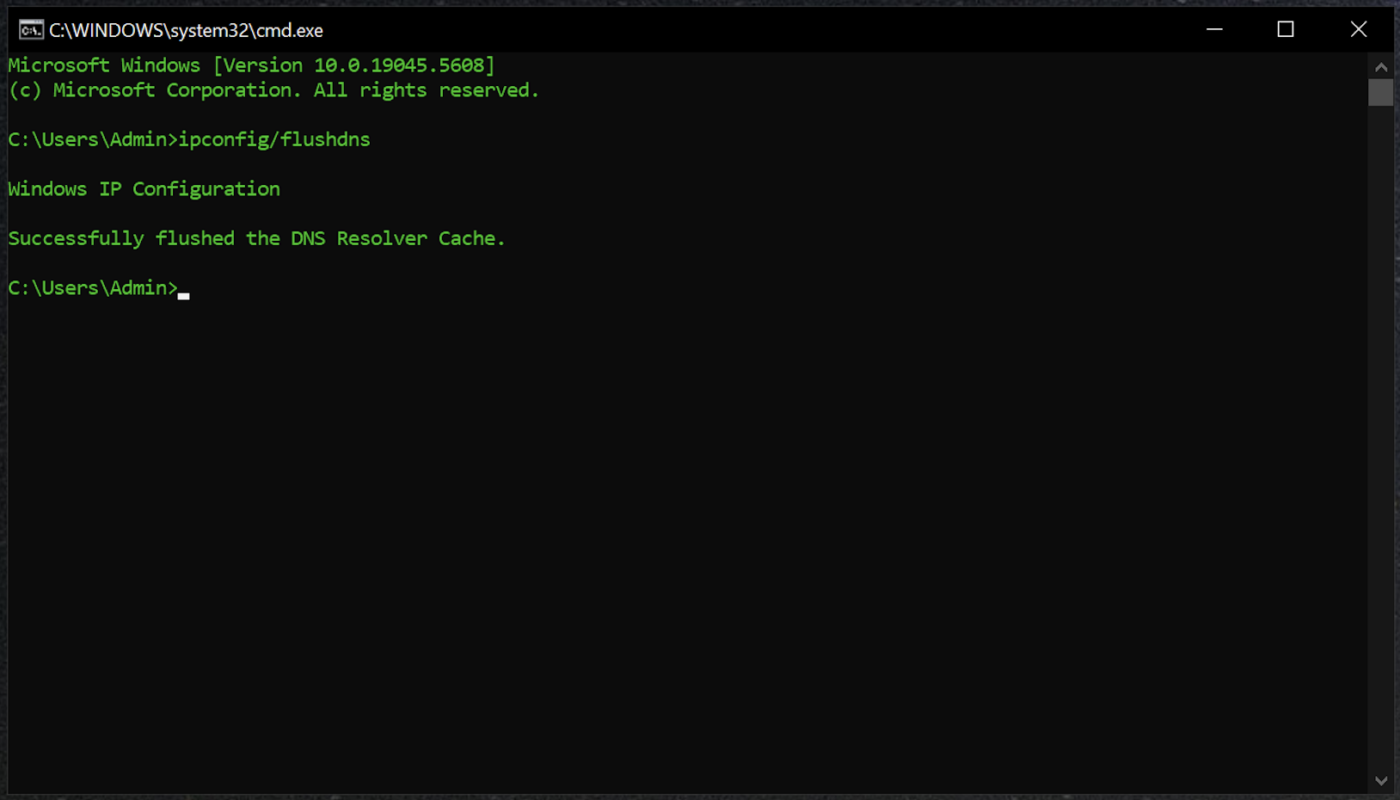
- Enter “ipconfig/flushdns” and press enter. If done correctly you will see a message, “Windows IP Configuration Successfully flushed the DNS Resolver Cache.” Exit out of/close the terminal window.
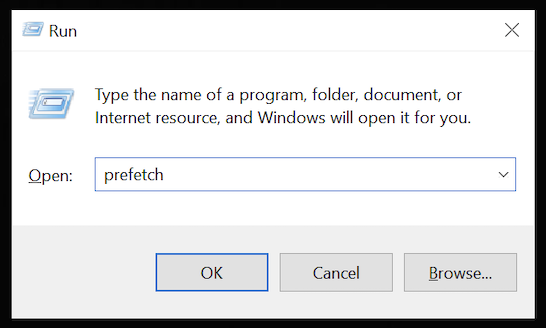
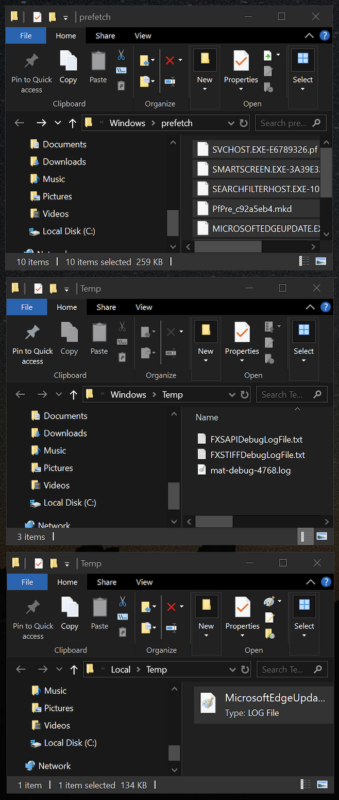
- Again, press the “Windows icon” button on your keyboard + “r” at the same time.Type “prefetch” and press enter. A File window will open of this folder. Delete the files and keep this window open at all times to delete files as needed in the future.
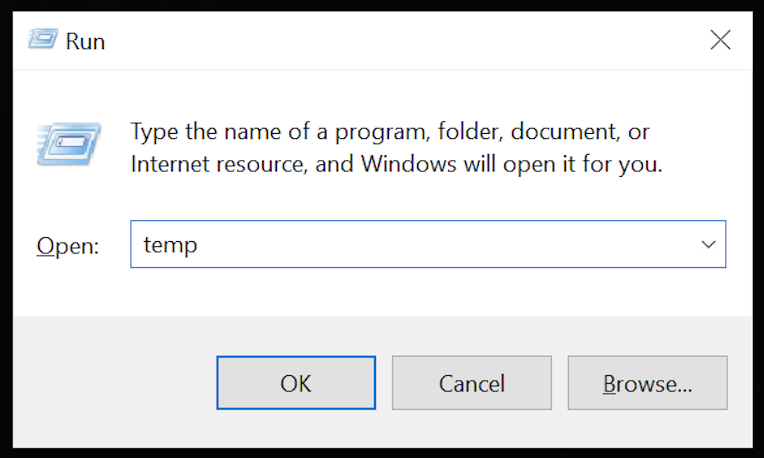
- Again, press the “Windows icon” button on your keyboard + “r” at the same time. Type “temp” and press enter. A File window will open of this folder. Delete the files and keep this window open at all times to delete files as needed in the future.
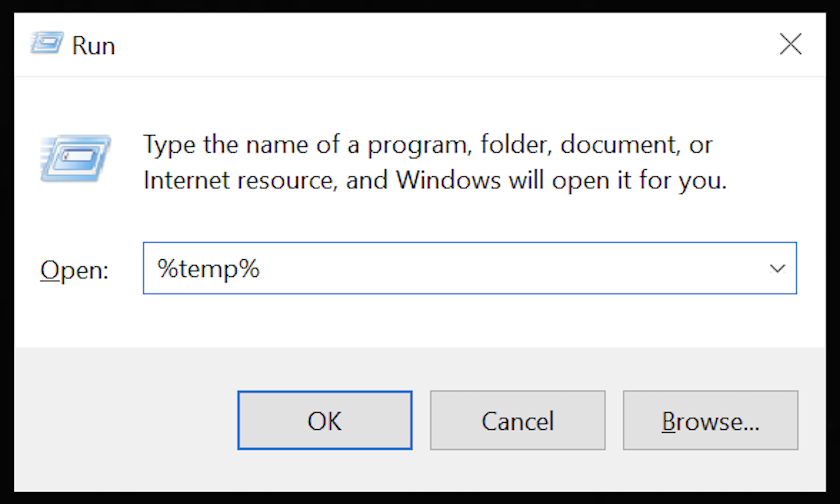
- Again, press the “Windows icon” button on your keyboard + “r” at the same time. Type “%temp%” and press enter. A File window will open of this folder. Delete the files and keep this window open at all times to delete files as needed in the future.
- Shut down your computer to finalize the clearing of your stored DNS internet files. Startup your Windows PC after 10 or more seconds and continue use as normal.
Remember that you must do this after every time you connect to the internet in order to maintain the security of your online activity and devices.
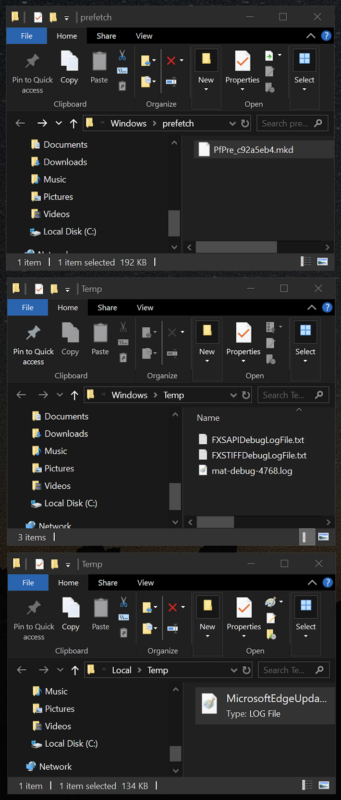
If all is done correctly, when you get back online you will be prompted to log back in to your social media, YouTube, email, or any other apps you use (including applications for work), some of which may require two-factor authentication. While this is tedious it protects you. Note, if you use YouTube (or other apps that store cookies) without an account you will notice much of the suggested content is no longer catered to your search history. While this may not be to your preference, it is safer and arguably worth doing just to avoid binging on YouTube videos or other unnecessary content.
What To Do If Your Internet Modem, Router, or Devices Are Hacked
- If you want to and can, have your devices checked for hacking. If proven to have been hacked, this proof will support you in any future civil suit (if you choose to pursue). Replace all devices or have the software wiped from each of them and reinstall a new version of the operating system (OS). Note, Apple will do this for you in-store at no cost. Do this and get a new internet modem and router (if applicable – always disable the wifi) before connecting any existing or new devices to the internet (see next step).
- Contact your internet provider and get a new internet modem as well as a new router (if applicable – always disable the wifi).
- Update security features on all devices. It’s better to enable all the security features that you can (including “lockdown mode”). Disable everything that’s unnecessary and adjust as needed.
- Enable SSL websites only in your browser (HTTP is not safe, but HTTPS (SSL) is secure).
- Install online security software on all devices.
- Use a VPN if you want and can afford. Be aware that some VPNs (such as Express VPN) do not store any data on their servers. This can be a risk to you as your online activity is no longer “traceable”, and therefore cannot be retrieved to identify the presence and source of hacking or support you in any civil suit (which online security software can minimize this risk).
How To Protect Yourself On Social Media
- Disable apps from accessing your microphone, camera, and location.
- Change your social media security settings to no longer suggest content.
- Make your social media connections private.
- Block social media “friend” suggestions.
- Unfollow hashtags.
All of this is absolutely necessary to protect you and your family (or business) from cyber criminal activity. There is no guarantee to protect against hacking, but these steps will ensure you are doing your part to protect against hacking. To be most secure even in the scenario that you are unknowingly hacked, you substantially minimize risk of danger by removing microphones and cameras from your computers (Apple will disconnect microphones on Macs in-store for free with a Genius Bar appointment) and phones, and always turning off location services on every device. By doing so you take away cyber criminal’s (government included) leverage by preventing them from accessing private information that allows them to monitor and conduct social engineering and/or organized crime against you and others. Take your power back.